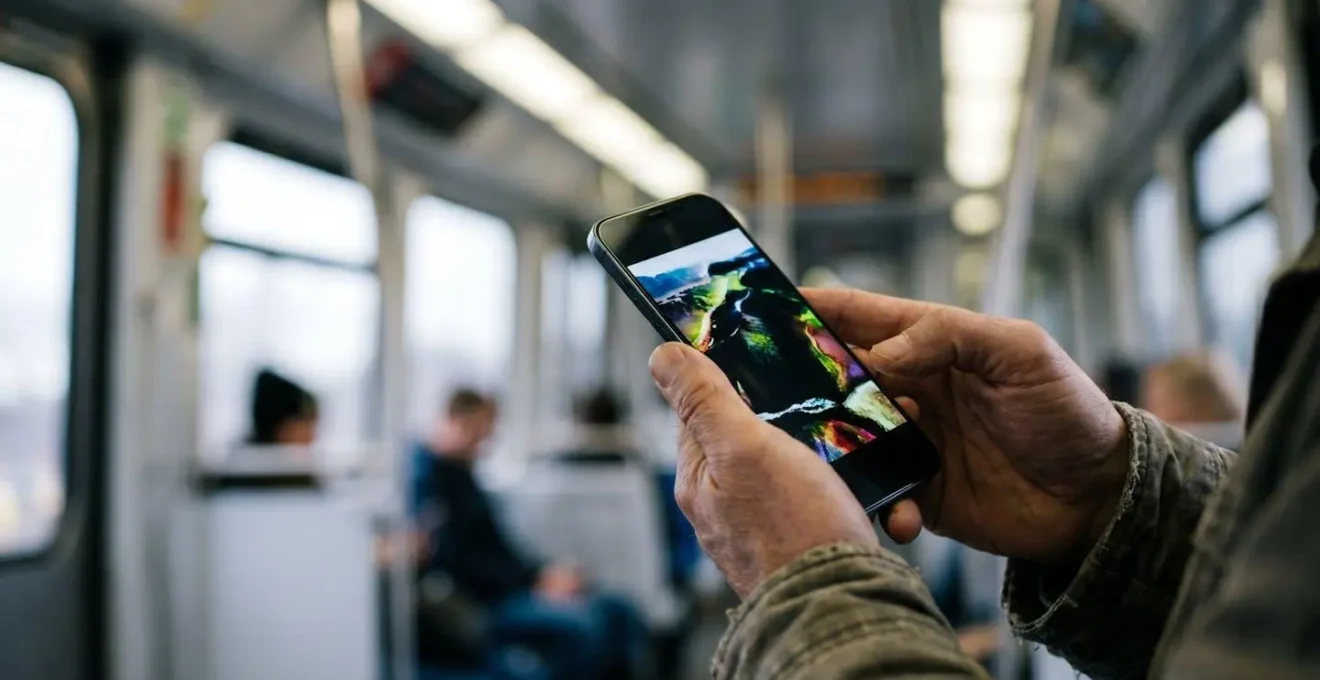
True cinematic viewing on your commute isn’t about screen brightness; it’s about mastering your device’s HDR capabilities to conquer ambient light and preserve the filmmaker’s intent.
- High Dynamic Range (HDR) isn’t just brighter, it’s smarter, rendering detail in the darkest shadows and brightest highlights, making scenes legible even in a sunlit train carriage.
- OLED screens are crucial, as their “infinite contrast” provides true blacks and power efficiency, making the visual upgrade worth the battery investment.
Recommendation: Adopt a hybrid strategy: download your most anticipated films in high quality over Wi-Fi, but use our targeted streaming optimisation tips to manage data for everything else without sacrificing the experience.
The familiar frustration hits. You’re settled in for your journey on the Northern line, ready to dive into the latest sci-fi epic. But the pivotal, shadow-drenched scene is an incomprehensible mess of glare and reflections on your screen. The common advice is always the same: “turn down your brightness to save battery” or “just download content beforehand.” These tips, while well-intentioned, miss the point entirely for a commuter who craves quality entertainment. They treat your two hours of potential immersion as a problem of data and battery life, not as a cinematic opportunity.
This guide rejects that compromise. As a critic who reviews viewing experiences, I argue that the daily commute doesn’t have to mean a downgrade in quality. The key isn’t found in generic battery-saving modes, but in understanding and mastering the specific technologies built into your modern smartphone. We will move beyond the superficial to explore the very mechanics of light, data, and power. What if the solution wasn’t just downloading, but knowing *when* and at what quality to download? What if the secret to conquering the train carriage’s “light pollution” wasn’t just maxing out brightness, but unleashing your screen’s intelligence?
This is your manual for becoming the projectionist of your own pocket cinema. We will delve into why HDR is your greatest ally against glare, how to demand the best quality from streaming services without constant buffering, and how to make strategic choices that preserve both your data plan and the filmmaker’s original vision. It’s time to stop just watching on the train, and start experiencing cinema.
Contents: Your Guide to a Flawless Commuter Cinema
- Why HDR makes dark movie scenes visible even under bright train lights?
- How to force HDR streaming quality on mobile data without buffering?
- SDR or HDR: is the extra battery consumption worth the visual upgrade?
- The settings error that eats 3GB of data in a single commute
- When to download content to ensure high-quality playback offline?
- Why infinite contrast helps you spot editing errors before printing?
- When to use smart downloads to fill your library over campus WiFi?
- Video Streaming Optimization: How to Watch YouTube on the Bus Without Hitting Your Data Cap?
Why HDR makes dark movie scenes visible even under bright train lights?
The magic of High Dynamic Range (HDR) in a hostile viewing environment like a train is not simply that it’s “brighter.” Its true genius lies in its intelligence. Standard Dynamic Range (SDR) content is like a musician with a limited set of notes. HDR, by contrast, is a full orchestra. This is achieved through a technical marvel called the Perceptual Quantizer (PQ) transfer function. This function allows a display to understand and reproduce a vastly expanded range of light values, from the deepest black to the brightest highlight.
Technically, the perceptual quantizer transfer function enables HDR to map a luminance range from 0 to 10,000 nits (a measure of brightness). Your phone screen can’t physically produce 10,000 nits, but it can now understand the *filmmaker’s intent* for that level of brightness. It knows the precise difference between the glint of a sword, the glow of a candle, and the blinding light of an explosion. This is a fundamental shift from SDR, which treats all bright spots with a much cruder approach.
In a bright train carriage, this matters immensely. A dark, shadowy SDR scene becomes a reflective, grey mess because the screen lacks the nuanced information to distinguish the subtle details in the gloom. An HDR screen, however, can maintain those deep, true blacks while simultaneously pushing the brighter parts of the same scene—like a character’s face lit by a flashlight—with enough intensity to cut through the ambient glare. You’re not just seeing a brighter image; you’re seeing a more detailed and accurate image that preserves the visual narrative, even when the world outside your screen is doing its best to wash it out.
How to force HDR streaming quality on mobile data without buffering?
You have a top-tier phone and a subscription to a premium streaming service. You select an HDR-labelled film, yet the image looks flat and disappointingly low-resolution. The culprit is almost always your streaming app being overly cautious. By default, apps like Netflix and YouTube aggressively downgrade video quality on a mobile data connection to prevent buffering, often robbing you of the very HDR experience you’re seeking.
To reclaim control, you must manually override these conservative settings. The first step is a reality check: true HDR streaming has a significant data requirement. To stream content in the highest quality, industry benchmarks suggest you need a stable connection of 25 Mbps or higher. Use a speed test app during your commute on a less-crowded part of your route (e.g., above ground between stations) to see if your 4G or 5G connection can realistically handle this demand.
If your connection is strong enough, it’s time to dive into the app settings. On Netflix, navigate to `App Settings > Cellular Data Usage` and switch from “Automatic” to “Maximum Data.” This tells the app you are willing to use more data to get the best possible picture. On YouTube, tap on a video, go to `Settings (the gear icon) > Quality > Advanced` and select the highest available resolution (e.g., 2160p HDR). This setting often needs to be selected on a per-video basis, but it forces the app to deliver the goods. Be warned: this approach is a data-intensive strategy. It’s not for every day, but for that one film you’ve been waiting to watch, it ensures you’re seeing it in all its intended glory, not a pixelated compromise.
SDR or HDR: is the extra battery consumption worth the visual upgrade?
The persistent myth is that watching HDR content will mercilessly drain your battery. While it’s true that HDR requires more power than SDR, the story is far more nuanced, especially if your device has an OLED (Organic Light-Emitting Diode) screen. Unlike traditional LCD screens that use a constant backlight for the entire display, each pixel in an OLED screen generates its own light. This has a profound impact on power consumption.
When an OLED screen needs to display black, the pixels simply turn off completely. They consume zero power, creating a perfect, inky black and saving energy. This is what enables the “infinite contrast” ratio. HDR content takes full advantage of this. A scene in a dark cave with a single torch will use surprisingly little power, as most pixels are off or dimly lit, while only the pixels representing the flame will be pushed to a high brightness. An LCD, by contrast, would have its backlight on across the entire screen, wasting energy trying to block light for the dark areas—a far less efficient process.
This concept of content-aware power usage is being actively developed. For instance, Samsung and Intel’s SmartPower HDR technology is a prime example. This technology analyses video content frame by frame and dynamically adjusts the power supplied to the OLED panel, reducing consumption by intelligently managing brightness. This proves that the industry is focused on making HDR more efficient, not just brighter.
So, is the extra battery consumption worth it? On an OLED device, absolutely. The power cost is not a flat tax; it’s a dynamic investment that pays huge dividends in visual quality. You’re getting an image with deeper blacks, punchier highlights, and a level of detail that SDR simply cannot match, all with a power management system that’s far smarter than you might think.
The settings error that eats 3GB of data in a single commute
You’ve carefully managed your viewing, perhaps even sticking to lower resolutions, yet you receive that dreaded text from your carrier: you’ve used 80% of your monthly data. The culprit might not be your active streaming, but the hidden data consumption happening in the background. With video apps dominating mobile data usage, accounting for an estimated 76% of global mobile data, a single misconfigured setting can have catastrophic consequences for your data plan.
The most common “settings error” is leaving Background App Refresh enabled for your streaming apps. This feature allows apps to pre-fetch content and update in the background so they are ready the moment you open them. While convenient on Wi-Fi, on mobile data it means Netflix or YouTube could be downloading episodes of a show you may never watch, just because its algorithm thinks you might be interested. A single hour-long HD episode can be 1-3GB. If this happens in the background on your morning and evening commute, you could burn through a significant portion of your monthly allowance without watching a single second.
The fix is a crucial piece of data hygiene. On iOS, go to `Settings > General > Background App Refresh` and either turn it off for your video apps or set it to “Wi-Fi” only. On Android, the path is typically `Settings > Apps`, then select the specific app, and under “Mobile data & Wi-Fi,” disable “Background data.” This single action prevents apps from using your precious mobile data without your explicit permission. It puts you back in control, ensuring that the only data being used for video is for the content you are actively, consciously choosing to watch.
When to download content to ensure high-quality playback offline?
For the true cinephile commuter, downloading is not just a data-saving tactic; it’s the ultimate form of quality control. Streaming, even at “Maximum Data,” is a negotiation with the network. A sudden tunnel or a congested carriage can introduce buffering or a sudden drop in quality, shattering the immersion. Downloading your content over a stable Wi-Fi connection removes the network from the equation entirely, guaranteeing a flawless, high-bitrate playback experience from start to finish.
However, “downloading” isn’t a single action; it’s a strategic choice involving trade-offs between quality and storage space. Most streaming services offer several download quality settings, and understanding their impact is key to curating your commute library effectively. As a film critic, I advise you to think of your device’s storage as premium shelf space. You wouldn’t fill a library with poorly printed paperbacks, and you shouldn’t fill your phone with low-quality video files.
The following table for Netflix content illustrates the trade-off. This data helps you decide: is your commute this week about binging many hours of a standard sitcom, or savouring one or two cinematic masterpieces?
| Quality Setting | Data Usage per Hour | Weekly Commute (10 hours) | Content Variety Trade-off |
|---|---|---|---|
| Low (SD) | 0.3 GB | 3 GB | ~30 hours of content |
| Medium | 0.7 GB | 7 GB | ~14 hours of content |
| High (HD) | Up to 3 GB | 30 GB | ~3 hours of premium quality |
| Ultra HD (4K) | Up to 7 GB | 70 GB | ~1.5 hours of maximum quality |
The strategy is clear: use the “High” or even “Ultra HD” setting for those truly important films you’ve been waiting to see, ensuring the best possible offline presentation. For more casual viewing, the “Medium” setting offers a reasonable balance. This deliberate approach, as noted in a guide on optimising Netflix data, transforms downloading from a simple convenience into a curatorial act, ensuring every gigabyte serves your cinematic experience.
Why infinite contrast helps you see films as the director intended?
The term “infinite contrast” sounds like marketing hyperbole, but for an OLED screen, it’s a physical reality with profound implications for the viewing experience. It’s the single greatest tool for seeing a film exactly as the director and cinematographer intended, especially in discerning the subtle details of a professionally colour-graded image. A standard LCD panel has a fundamental limitation: its backlight is always on. To create black, it uses liquid crystals to block that light, but some light always leaks through, resulting in a hazy, elevated grey instead of true black. At their best, LCDs max out around a 1,000:1 contrast ratio, while OLEDs achieve a theoretically infinite one.
This “infinite” ratio is possible because, as we’ve discussed, OLED pixels can turn off completely. This doesn’t just make black scenes look better; it reveals a new layer of detail. As a case study in video fidelity demonstrates, this characteristic makes video compression artifacts—like the blocky patterns (macroblocking) or ugly bands of colour in a dark sky—painfully obvious on an OLED screen. These flaws would be completely masked by the backlight bleed of an LCD. While seeing artifacts might sound undesirable, for a critic or an enthusiast, it’s a sign that you’re seeing the image with near-perfect fidelity. You can distinguish the fine texture of a dark wool coat from the shadowy wall behind it, a distinction lost on lesser displays.
This ability to render perfect blacks allows the rest of the colours to pop with incredible vibrancy and accuracy. You are not just seeing black; you are seeing *into* the black. It’s the difference between looking at a photograph of a night sky and looking at the night sky itself. For anyone serious about cinematic presentation, the uncompromising black levels of an OLED are non-negotiable. They are the foundation upon which the entire visual narrative of a film is built.
When to use smart downloads to fill your library over campus WiFi?
While manual downloading gives you ultimate quality control, it can be a chore. For the daily grind of a commute, you also need a library of content that’s fresh, relevant, and requires zero effort to maintain. This is the role of “smart downloads,” a feature offered by services like Netflix (“Downloads for You”) and YouTube (“Smart downloads”). The feature uses your viewing history to automatically download content it thinks you’ll like, but only when you’re connected to Wi-Fi. This is the perfect tool for the modern commuter.
The strategy is to leverage trusted, unmetered Wi-Fi networks—your home broadband in the morning, your office network before you leave for the evening—to act as your personal content curators. The feature works in the background, deleting watched episodes and replacing them with new ones, ensuring you always have a few hours of viewing material ready to go. With the average mobile data traffic per active smartphone projected to climb steadily, using Wi-Fi for these bulk downloads is essential for preserving your mobile data for when you truly need it.
However, an unmanaged smart download feature can quickly fill your phone’s storage with shows you have no interest in. Mastering this feature requires a bit of upfront configuration to make it truly “smart” for your needs. Following a few key steps can turn it from a blunt instrument into a precision tool for curating your commute library.
Your Action Plan: Taming Smart Downloads
- Enable the Feature: Dive into your app’s settings and activate “Downloads for You” (Netflix) or “Smart downloads” (YouTube).
- Set Strict Storage Limits: This is the most crucial step. Allocate a specific amount of storage (e.g., 5-10 GB) to the feature. This prevents it from consuming all your free space.
- Configure Network Permissions: Ensure downloads are set to occur “Wi-Fi Only.” This prevents any accidental usage of your mobile data plan for these large files.
- Curate Your Profile: The algorithm is only as good as the data you give it. Be disciplined with your “likes” and “dislikes,” and consider using a dedicated “Commuter” profile to train the algorithm specifically on the type of content you watch on the go.
- Periodic Purge: Once a month, review the downloaded content. If the algorithm is consistently choosing poorly, clear its cache and your watch history to give it a fresh start.
Key Takeaways
- HDR is not about raw brightness but about intelligent light control, allowing detail in both the darkest and brightest parts of an image to survive in a bright environment.
- OLED screen technology is the perfect partner for HDR, as its ability to turn pixels off completely delivers infinite contrast and greater power efficiency in dark scenes.
- A hybrid content strategy is optimal: use Wi-Fi to download high-quality “hero” content and use smart streaming/smart downloads for everything else.
Video Streaming Optimization: How to Watch YouTube on the Bus Without Hitting Your Data Cap?
We’ve focused on achieving the pinnacle of cinematic quality, but sometimes, the goal is simply to get through a 45-minute bus ride from Victoria to Islington without hitting your data cap or a buffering wall. This is where tactical optimisation comes into play. For shorter-form content like YouTube videos on a smaller screen, pushing for 4K HDR is often overkill and a waste of data. The key is to find the sweet spot between watchable quality and data conservation.
The “Data Saver” mode in many apps is your best friend here. On a small phone screen, the difference between 1080p and 720p is often negligible, but the data savings are significant. For most commutes, choosing a data-saving 720p stream over a high-bitrate HD one provides a perfectly acceptable experience while using a fraction of the data. This pragmatic approach allows you to stay entertained and informed without data anxiety.
Ultimately, the perfect mobile viewing experience is a blend of these strategies, tailored to the moment. This is perfectly encapsulated by the real-world scenario of a fellow commuter. As Maria, a digital marketing professional, attests, her daily two-hour train commute involves watching HDR10+ nature documentaries on her Samsung Galaxy S23 Ultra. She notes that the automatic brightness frequently ramps up to combat the cabin’s overhead lighting, a perfect demonstration of how ambient light directly impacts both HDR performance and battery life. Her experience is a microcosm of everything we’ve discussed: the desire for premium quality (HDR), the hardware that enables it (OLED), and the real-world challenges (ambient light, battery) that must be managed.
Maria’s commute is a testament to the fact that with the right knowledge, your daily journey doesn’t have to be lost time. It can be a curated, high-fidelity cinematic event. By understanding the technology in your pocket, you cease to be a passive consumer at the mercy of network conditions and app defaults. You become your own projectionist.
Now, armed with this knowledge, you can begin to audit your own device and app settings. Start today by implementing these strategies to transform your next commute from a compromise into a premium, uninterrupted cinematic experience.