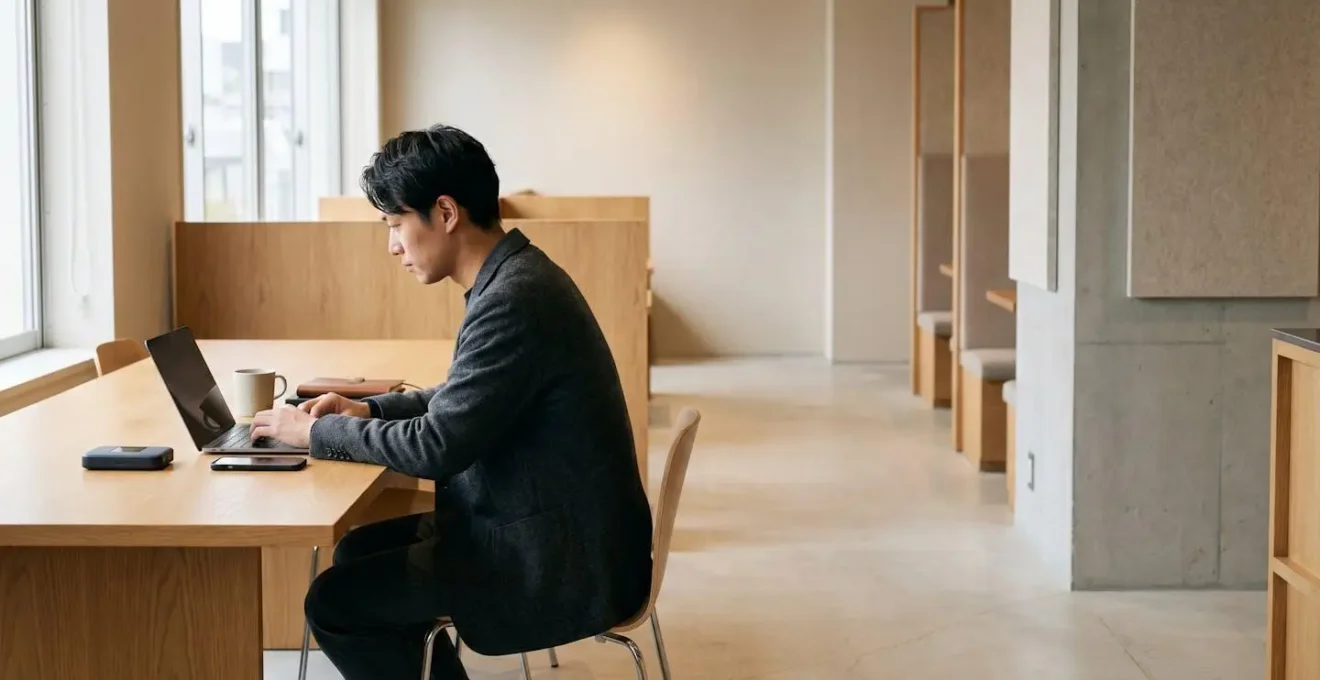
The greatest myth of remote work is that a fast internet connection equals a productive one. The reality is that for a professional, one minute of downtime is more damaging than an entire day of slow speeds.
- Your primary goal is not peak speed, but 100% uptime, achieved through a multi-layered, redundant system.
- This involves combining different network types (cellular, Wi-Fi, wired) and having pre-configured fail-safes for each.
Recommendation: Stop hunting for the fastest Wi-Fi and start building a connectivity ecosystem that anticipates and neutralises every potential point of failure.
After ten years of working from every conceivable location—from bustling Bangkok cafes to quiet train carriages crossing the Alps—I can tell you the single biggest mistake new digital nomads make. They obsess over internet speed. They run speed tests, boast about download numbers, and choose their accommodation based on a screenshot of an Ookla result. That’s the amateur’s game. The professional, especially a UK professional managing client expectations from a different continent, understands a far more critical metric: reliability. The cost of a single dropped video call with a key client in London is infinitely higher than the inconvenience of a slow download.
The common advice to “get a local SIM” or “use a VPN” is dangerously incomplete. It addresses access, not resilience. True freedom in remote work doesn’t come from a fast connection; it comes from the quiet confidence that your connection will *never* fail. This requires shifting your mindset from a consumer of internet to an architect of your own personal network. It’s about building a deliberate, multi-layered system of redundancy where every component has a backup, and that backup has its own backup. It’s less about the power of any single link and more about the strength of the entire chain.
This isn’t about expensive gadgets or complex technical knowledge. It’s a strategic approach to identifying and eliminating single points of failure. Your Wi-Fi can go down, your SIM can lose signal, your phone battery can die. A professional plans for all three. This guide moves beyond the basics to detail the specific, battle-tested strategies for building a truly resilient connectivity ecosystem. We will cover how to structure your network layers, secure your work in unpredictable environments, and manage your workflow across continents without a single moment of lost productivity.
This article provides a structured path to building that professional-grade resilience. Follow along as we deconstruct each layer of a robust remote work setup, from network fundamentals to the physical tools that make it all possible.
Summary: Building a Resilient Digital Nomad Connectivity System
- Why you need two different network SIMs to guarantee uptime?
- How to configure USB tethering as a fail-safe for hotel Wi-Fi?
- Coworking Space vs Cafe Wi-Fi: is the monthly fee worth the security?
- The cafe mistake that leaves your unlocked phone vulnerable in seconds
- How to organize your calendar to handle UK clients from Asia?
- Local SIM vs Roaming Bundle: which is cheaper for a 2-week trip?
- How to set up an ergonomic mobile workstation in a train carriage?
- Expanding Utility Through Specialized Peripherals: How to Turn Your Mobile into a Workstation?
Why you need two different network SIMs to guarantee uptime?
Your first layer of defence against downtime isn’t Wi-Fi; it’s a robust cellular setup. Relying on a single SIM card, even a local one, creates a critical single point of failure. A regional network outage, a dead spot in your apartment, or a carrier’s technical issue can instantly sever your connection to clients. The professional solution is network redundancy through a dual-SIM strategy. This isn’t just about having two SIMs; it’s about having two SIMs from carriers that operate on different underlying network infrastructures. For example, in the UK, pairing a SIM that uses the EE network with one that uses Vodafone’s gives you a much better chance of staying online than two SIMs that both rely on EE’s towers.
The adoption of this strategy is growing globally; statistics show that in countries like India and Indonesia, over 65% of users prefer dual-SIM phones, recognizing the need for flexible connectivity. For a digital nomad, this flexibility is a professional requirement. Modern smartphones with dual-SIM capability (often one physical SIM and one eSIM) allow for automatic failover. If your primary data SIM loses its signal, the phone can instantly switch to the secondary SIM, often without you even noticing. This seamless transition minimizes cognitive load during a critical meeting, allowing you to focus on the client, not the connection.
For ultimate resilience, consider a third layer: a global eSIM provider like Airalo or Holafly configured as an emergency-only, pay-as-you-go backup. It remains dormant until both your primary SIMs fail, offering a final safety net that can be activated instantly anywhere in the world. Remember, running two active SIMs can impact battery life, so a reliable power bank becomes a non-negotiable part of this ecosystem.
Your Action Plan: Auditing Your Network Redundancy
- Points of Contact: List all your connectivity channels (primary SIM, secondary SIM, hotel Wi-Fi, coworking Wi-Fi).
- Collecte: Inventory your current SIMs. Do they run on different network backbones or the same one? Research the local infrastructure providers.
- Coherence: Does this setup align with your “zero downtime” goal? Where is the weakest link? Is it a single carrier or reliance on public Wi-Fi?
- Mémorabilité/Émotion: Is your current setup a source of anxiety (unreliable) or confidence (redundant)? Identify the one failure point that worries you most.
- Plan d’intégration: Prioritise fixing the weakest link. This could mean buying an eSIM from a different provider or upgrading your phone to one with dual-SIM capabilities.
How to configure USB tethering as a fail-safe for hotel Wi-Fi?
Hotel and Airbnb Wi-Fi is notoriously unreliable. It’s often congested, has arbitrary security blocks, and can drop out at the worst possible moment. While your dual-SIM setup is your first line of defense, a wireless hotspot can still be a point of failure due to signal interference or battery issues. The ultimate, most stable backup is a direct, physical connection: USB tethering. It transforms your smartphone into a dedicated modem for your laptop, creating a private and exceptionally stable network that is immune to the wireless chaos around you.
Configuring it is simple. On both Android and iPhone, connecting your phone to your laptop with a USB cable and enabling “USB Tethering” or “Personal Hotspot” in your settings creates a direct network interface. This method is superior to a Wi-Fi hotspot for several reasons. First, it’s faster and has lower latency because the data doesn’t have to be broadcast wirelessly. Second, it simultaneously charges your phone, eliminating the battery drain associated with Wi-Fi hotspotting. Finally, it’s more secure, as a wired connection cannot be intercepted in the same way as a public Wi-Fi signal.
This physical link is your ace in the hole. When the hotel Wi-Fi drops mid-presentation, you don’t panic. You simply plug in a single cable, and you’re back online in seconds on a connection that is often more stable than the hotel’s primary service. It’s a simple, elegant solution that embodies the professional’s focus on uptime over convenience.
As this image illustrates, the physical lock-in of a cable provides a tangible sense of security and reliability that no wireless signal can match. It’s the digital equivalent of a safety rope, ensuring your workflow remains uninterrupted no matter how turbulent the surrounding network environment becomes. Think of it as your personal, dedicated internet line that you carry in your pocket.
Coworking Space vs Cafe Wi-Fi: is the monthly fee worth the security?
Choosing where to work is a financial and logistical decision, but for the professional nomad, it’s primarily a risk management calculation. The free Wi-Fi at a cafe is tempting, but you pay for it with inconsistency, noise, and significant security vulnerabilities. A coworking space, with its monthly fee, is an investment in professional-grade infrastructure and mitigating the high cost of downtime. While some research shows that 48% of people cite lack of privacy as a concern even in coworking spaces, the network security itself is worlds apart from a public cafe.
Cafe Wi-Fi is typically an open, public network. This means your data is broadcast unencrypted, making it trivial for a bad actor on the same network to intercept your information (a “man-in-the-middle” attack). Even with a VPN, the connection itself is a shared, consumer-grade line that gets congested during peak hours, leading to dropped calls and slow performance. A coworking space, by contrast, offers enterprise-level infrastructure. The Wi-Fi is secured with WPA2/WPA3 protocols, networks are often segmented, and the bandwidth is designed for business use, ensuring consistent speeds and reliability.
Beyond the network, a coworking space provides the physical infrastructure for deep work: quiet rooms for client calls, reliable power outlets, and a professional environment. The monthly fee of $150-$400 isn’t just for a desk; it’s an insurance policy against the myriad of issues that can cripple a workday in a cafe. The choice ultimately depends on the nature of your work. For light browsing and non-sensitive tasks, a cafe may suffice. For client calls, video meetings, and handling sensitive data, the monthly fee for a coworking space is not a cost—it’s an essential investment in security and uptime.
To make the decision clearer, it’s helpful to break down the key differences. This table compares the two options across the factors that matter most to a remote professional, based on an analysis of digital nomad internet options.
| Factor | Coworking Space | Cafe Wi-Fi |
|---|---|---|
| Network Security | Enterprise-level infrastructure with secure protocols | Open public networks vulnerable to interception |
| Connection Reliability | Business-grade bandwidth, consistent speeds | Congested, inconsistent, drops during peak hours |
| Professional Infrastructure | Quiet call rooms, reliable power, professional address | Noise, unpredictable environment, limited power access |
| Monthly Cost | $150-400 (full-time membership) | $0 (with purchase obligation, typically $5-15 daily) |
| Downtime Risk | Minimal (backup systems, IT support) | High (network failures, forced relocation) |
| Best For | Client calls, video meetings, sensitive work | Light browsing, casual work, short sessions |
The cafe mistake that leaves your unlocked phone vulnerable in seconds
While network security is a major concern in public spaces like cafes, the most immediate threat is often physical. The classic mistake is leaving your phone or laptop on the table while you step away to order or use the restroom. It only takes a few seconds for a thief to snatch your device. But even more dangerous is the momentary lapse in attention that leaves an *unlocked* device exposed. A skilled thief doesn’t just want your hardware; they want the data, bank accounts, and identity linked to it. An unlocked phone is a master key to your digital life.
You must operate with a “zero trust” policy in any public environment. This means assuming someone is always watching. When you enter your passcode, shield the screen with your body to block sightlines from “shoulder surfers” or hidden cameras. More importantly, you must configure your devices to be resilient against these momentary lapses. This involves proactive security measures that you set up *before* you even enter the cafe, effectively hardening your devices against opportunistic threats.
These protocols reduce the window of opportunity for a thief. For instance, setting an aggressive auto-lock timer of 30 seconds means a moment of distraction is far less likely to leave your device vulnerable. Disabling lock-screen access to notifications and payment apps like Apple Pay or Google Wallet prevents a thief from accessing sensitive information or making fraudulent payments without even needing to unlock the device. The goal is to create layers of friction that make your devices a less attractive target.
Action Plan: Pre-emptive Security Protocols for Public Workspaces
- Enable iOS Lockdown Mode or Android Guest Mode: Activate these restricted system modes that disable potentially vulnerable features before entering any public workspace.
- Set aggressive auto-lock timing: Configure your device to lock after 30 seconds of inactivity maximum when in public environments.
- Shield passcode entry: Position your body to block surveillance angles (overhead cameras, shoulder surfers) when unlocking your device.
- Deploy motion-sensor alarms: Use affordable Bluetooth-enabled motion sensors that trigger alerts on a secondary device if your phone or laptop is moved while you’re away.
- Disable lock-screen shortcuts: Remove quick-access features to Apple Pay, Google Wallet, and notification content that expose sensitive information without unlocking.
How to organize your calendar to handle UK clients from Asia?
Once your technical connectivity is solid, the next layer of reliability is your workflow. For a UK professional working from Asia, the biggest challenge is managing a 7 or 8-hour time difference. This isn’t just a scheduling problem; it’s a relationship management and expectation-setting challenge. Your clients in the UK should feel as if you’re in the next office, not halfway across the world. This requires a highly disciplined and clearly communicated calendar strategy.
First, your calendar must become your single source of truth. Use a tool like Calendly or SavvyCal that automatically handles time zone conversions. Configure your availability strictly. Your core “UK overlap” hours might be from 2 PM to 6 PM your local time (e.g., in Thailand), which corresponds to 8 AM to 12 PM in the UK. This is your prime time for synchronous communication: video calls, and real-time collaboration. This block of time is sacred and must be protected from all other distractions.
Second, you must communicate this structure to your clients. Frame it as a benefit to them. For example: “To ensure I’m fully available for real-time collaboration, my dedicated UK-hours are from 8 AM to midday. I reserve this time exclusively for calls and meetings with my UK partners. For any non-urgent matters, email is best, and I will respond first thing in my workday.” This sets clear expectations and shows professionalism. It replaces the anxiety of “When can I reach you?” with the confidence of a predictable schedule. Your mornings (local time) become your time for deep, uninterrupted work, while your afternoons are for client-facing activities.
This strategic management of time, as symbolized here, is what separates the struggling nomad from the thriving one. It’s about creating a system that bridges continents, respects everyone’s work-life balance, and ensures that communication is as reliable as your internet connection. Your calendar becomes the most important tool in your reliability ecosystem.
Local SIM vs Roaming Bundle: which is cheaper for a 2-week trip?
For short-term stays, the question of connectivity becomes a sharp calculation of cost versus convenience. The traditional options are your home carrier’s roaming bundle or buying a local physical SIM card upon arrival. Carrier roaming is the most convenient—it works the moment you land—but it’s also punishingly expensive, often costing $10-$15 per day, which can add up to over $200 for a two-week trip. A local SIM is far cheaper, typically $15-$35 for a generous data allowance, but requires the hassle of finding a store, registration, and swapping cards.
However, the rise of eSIMs has completely changed this equation. eSIM providers like Airalo and Holafly offer a third way that combines the convenience of roaming with the affordability of a local SIM. You can purchase and install an eSIM digitally in minutes before you even leave home. This gives you instant connectivity upon arrival without the exorbitant cost. The choice between different eSIM providers often comes down to your data needs. A 2025 comparison study of eSIMs found that for heavy data users, Holafly’s unlimited plans provided better value, while Airalo’s smaller, capped data plans were more suitable for light users or as a backup.
Ultimately, for a two-week trip, a carrier roaming bundle is almost never the financially sound choice. The real decision is between the slight inconvenience and lowest cost of a local physical SIM, versus the slightly higher cost but supreme convenience of an eSIM. For a professional whose time is valuable, the 5 minutes it takes to set up an eSIM versus the 60-90 minutes it might take to get a local SIM often makes the eSIM the clear winner.
The following table, drawing from recent analyses, breaks down the typical costs and trade-offs for a 14-day period.
| Solution | Setup Time | Data Allowance | Total 14-Day Cost | Throttling |
|---|---|---|---|---|
| Local Physical SIM | 30-90 min (finding shop, registration) | 10-50GB typical | $15-35 | Rare |
| eSIM (Airalo capped) | 5 min (instant digital) | 1-20GB (requires top-ups) | $20-40 (with top-ups) | No (hard cap) |
| eSIM (Holafly unlimited) | 5 min (instant digital) | Unlimited (throttled after 3GB/day) | $40-50 | Yes (after 3GB daily) |
| Carrier Roaming Bundle | 0 min (pre-activated) | Unlimited (heavily throttled) | $140-210 ($10-15/day) | Severe (after 500MB-2GB) |
How to set up an ergonomic mobile workstation in a train carriage?
Working while in transit is the ultimate test of a digital nomad’s setup. A train carriage is an unstable environment with unpredictable power, shaky surfaces, and variable lighting. Simply balancing a laptop on your knees is a recipe for poor ergonomics and low productivity. The key to working effectively on a train is a pre-packed, 60-second deployment kit that prioritizes ergonomics and stability.
This isn’t about bringing your entire office. It’s about a small, dedicated module in your go-bag containing a few essential peripherals. The core components are a foldable laptop stand, a compact external keyboard (foldable or rollable), and a vertical mouse. The stand raises your screen to eye level, preventing neck strain. The external keyboard and mouse allow you to maintain a healthy posture even on a tiny, cramped train table. This simple setup transforms a compromised working position into a comfortable and sustainable one.
Power and privacy are the next considerations. Never rely on train outlets, which can have voltage fluctuations that damage your devices. A high-capacity power bank (20,000mAh or more) is essential for power independence. To deal with shifting glare from windows and to protect your work from onlookers, a magnetic privacy screen is a game-changer. It snaps onto your display instantly and significantly reduces viewing angles. Finally, to combat the train’s motion, a small non-slip mat placed under your laptop and mouse provides the stability needed to work without your equipment sliding around.
Action Plan: 60-Second Mobile Workstation Setup Kit
- Pre-pack Go-Bag module: Assemble a mini-stand (foldable), compact keyboard (foldable/rollable), vertical mouse, and cable organizer in a dedicated bag compartment for instant access.
- Prioritize portable power station: Use a high-capacity power bank (20,000mAh+) or portable power station instead of train outlets to avoid voltage fluctuations and outlet scarcity.
- Deploy magnetic privacy filter: Install a magnetic screen filter that blocks side viewing angles while reducing glare from shifting window light during travel.
- Secure devices against movement: Use non-slip mats or adhesive stabilizers under your laptop and peripherals to prevent sliding during train motion.
- Position for ergonomics: Elevate the screen to eye level with a compact stand and use an external keyboard to maintain proper arm angle even on small train tables.
Key Takeaways
- True remote work freedom comes from 100% uptime, not maximum speed. Focus on building a redundant connectivity system.
- A multi-layered approach using dual SIMs on different networks, plus a wired USB tethering fail-safe, eliminates single points of failure.
- The cost of a professional workspace (like a coworking membership) is an investment in reliability and security that far outweighs the risks of free cafe Wi-Fi for critical tasks.
Expanding Utility Through Specialized Peripherals: How to Turn Your Mobile into a Workstation?
The ultimate expression of a resilient, minimalist remote work setup is the ability to transform your smartphone into a fully functional workstation. This is the final layer of your reliability ecosystem: a complete backup for your primary laptop that fits in your pocket. Modern flagship smartphones from brands like Samsung (with DeX) and Motorola (with Ready For) have built-in desktop environments that activate when connected to an external screen. This is no longer a gimmick; it’s a viable professional tool.
The core of this setup is a portable monitor and a single USB-C cable. Connecting your compatible phone to the monitor with this one cable can provide power, display output, and a hub for your peripherals. Combined with a multi-device Bluetooth keyboard and mouse, you can switch seamlessly between your laptop and your phone-as-a-desktop. This creates an incredibly powerful failover system. If your laptop fails, you don’t miss a beat. You simply switch your keyboard and mouse to connect to your phone and continue working in a familiar desktop environment on the same portable monitor.
Case Study: The Samsung DeX and Cloud PC Workstation
An analysis of nomad setups detailed in publications like EarthSims shows a powerful combination. Professionals are using Samsung DeX to provide the base desktop environment from their phone. They then access a full Windows environment via Microsoft 365 Cloud PC. This setup, powered by a single USB-C cable to a portable monitor, offers a complete workstation. The study highlighted that portable monitors with built-in batteries were particularly effective, as they could power the setup and even recharge the phone, creating a self-sustaining ecosystem for hours of work without needing a wall outlet.
This hands-on, deliberate assembly of a mobile workstation is the hallmark of a veteran nomad. It’s a practiced routine that provides the ultimate safety net. Your phone is no longer just a communication device; it’s the redundant core of your entire professional operation, ready to be deployed at a moment’s notice. This is the pinnacle of a system built not for speed, but for unbreakable reliability.
Start by auditing your current setup to identify your single biggest point of failure. Fixing that one weak link—whether by adding a second SIM, buying a power bank, or assembling a basic ergonomics kit—is the first step toward building a truly professional and resilient remote work system that gives you the confidence to work from anywhere.