In summary:
- Your phone’s GPS doesn’t work alone; it relies on “sensor fusion” with the compass and accelerometer. A compass error will throw off your map’s orientation.
- Access hidden manufacturer diagnostic menus using dialer codes (like *#0*# for Samsung) to get a raw reading of sensor health.
- A GPS that is “stuck” or slow to lock is often not broken hardware, but corrupted A-GPS data that needs to be manually reset.
- After a drop, signal loss can be caused by invisible micro-fractures in the motherboard, even if the phone turns on normally.
You’re on your last delivery of the day, and the map suddenly shows you driving through a building. The blue dot jumps, spins, and then freezes. For a delivery driver, a malfunctioning GPS isn’t just an annoyance; it’s a direct threat to your livelihood. You’ve probably already tried the usual advice: toggling the location off and on, restarting the phone, maybe even yelling at it. Sometimes that works, but when it doesn’t, you’re left wondering if a costly repair or replacement is your only option. The problem with these common “fixes” is that they are shots in the dark. They don’t diagnose the actual problem.
What if you could approach the problem not as a frustrated user, but as a technician? The key isn’t to try random solutions, but to follow a systematic process of elimination—a diagnostic funnel. This guide is built on that principle. We will move from understanding the system and its most common software faults to running definitive hardware tests and identifying physical damage. Forget waving your phone in a figure-eight pattern without knowing why; you’re about to learn what a “cold start” is, why your Wi-Fi’s health can predict your GPS’s fate, and how to access the same hidden menus that repair technicians use. This is your toolkit for moving from uncertainty to a clear diagnosis.
This article provides a structured workflow to test your device’s location services systematically. The following summary outlines the key diagnostic stages we will cover, from basic sensor principles to advanced hardware failure analysis.
Summary: A Technician’s GPS Diagnostic Workflow
- Why a compass error affects your map orientation?
- How to access the hidden diagnostic menu on your phone?
- Third-Party App or Manufacturer Tool: which diagnostic is more accurate?
- The software glitch that looks like a broken microphone
- What order to test components to rule out motherboard failure?
- Why a phone might turn on but lose signal permanently after a drop?
- How to reset your battery stats if the AI learning has gone wrong?
- Protecting Internal Hardware Components: How to Avoid Data Loss After a Hard Fall?
Why a compass error affects your map orientation?
The first step in any diagnostic is to understand the system. Your phone’s GPS (or more accurately, GNSS) receiver is the primary component for determining location, but it doesn’t work in isolation. To provide a stable and correctly oriented map view, your phone’s operating system performs what is known as sensor fusion. It constantly blends data from three separate hardware components: the GPS receiver (for raw position), the accelerometer (for motion and tilt), and the magnetometer (the digital compass, for heading). When you are standing still, the blue dot on your map should show a “cone” pointing in the direction your phone is facing. This is the magnetometer at work. If that cone is spinning wildly or pointing in the wrong direction, the magnetometer is likely uncalibrated or malfunctioning.
Without an accurate compass heading, the map application can’t correctly orient the map to your view, leading to the sensation that the map is “spinning” or that you are facing the wrong way. Magnetic interference from metal cases, car mounts, or other electronics can temporarily throw it off. This is why calibration is a crucial first diagnostic step. It doesn’t fix a broken sensor, but it rules out the most common source of orientation error. As calibration specialists at STS note, the goal of this process is to combine the best data from each sensor while ignoring weaknesses.
Sensor fusion solves this by having the operating system run all three outputs through a mathematical filter typically a complementary filter or a Kalman filter that takes the strengths of each sensor and suppresses the weaknesses.
– STS Calibration, How to Calibrate Mobile Sensors – Proven Methods That Work 2026
Before assuming a hardware fault, perform a full compass calibration. The standard procedure is the “figure-8” motion, which ensures the sensor is exposed to the Earth’s magnetic field from all possible angles, allowing it to reset its baseline. If the orientation issue persists after a successful calibration in an open area away from metal, you can then move on to testing the sensor itself.
How to access the hidden diagnostic menu on your phone?
While third-party apps are useful, the most reliable source of raw hardware data comes from the phone’s built-in diagnostic menus. These are hidden service modes used by manufacturers and technicians to test individual components before the Android or iOS operating system fully loads its own drivers and software layers. Accessing these menus typically involves entering a specific code into the phone dialer app. These codes, often called “secret codes,” vary by manufacturer and even by the chipset (Qualcomm or MediaTek) inside the phone.
For example, many Samsung devices use the code *#0*# to launch a comprehensive hardware test suite. On this screen, you’ll find a “Sensor” tile. Tapping it reveals a live data feed from the accelerometer, gyroscope, and magnetometer, complete with a self-test option. A passing test here strongly indicates that the core sensor hardware is functional. Other manufacturers like Xiaomi use different codes. Finding the right one for your specific device is a key step in the diagnostic funnel. If a sensor fails in this low-level menu, it is a very strong indicator of a hardware problem.
This table outlines some of the most common diagnostic codes. If the primary code for your manufacturer doesn’t work, it may have been disabled by your cellular carrier; in such cases, searching online for “[Your Phone Model] service menu code” is the next step.
| Manufacturer | Diagnostic Code | Test Menu Access | GPS/Sensor Test |
|---|---|---|---|
| Samsung (Qualcomm/Exynos) | *#0*# | Full hardware test menu | Sensor tile displays compass, accelerometer, gyroscope in real-time |
| Xiaomi (Qualcomm/MediaTek) | ##6484## | CIT diagnostic menu | GPS, gyroscope, sensors, connectivity modules |
| Google Pixel | *#*#4636#*#* | Testing menu | Phone info, battery, network statistics (limited sensor access) |
| Universal Android | *#*#4636#*#* | Usage information menu | Battery data, app usage, network info |
| OnePlus/Realme/Oppo | ##2846579## | Engineering mode | Hardware diagnostics (varies by model/firmware) |
ADB Alternative for Carrier-Locked Diagnostic Access
For devices where carrier restrictions disable traditional dialer codes, advanced users can leverage Android Debug Bridge (ADB) shell commands. The command ‘adb shell dumpsys location’ provides raw location provider data directly from the system, bypassing locked manufacturer menus. As documented by Android’s own developer resources, this method requires enabling Developer Options and USB debugging, but grants access to real-time GPS status, satellite PRN numbers, signal-to-noise ratios (SNRs), and A-GPS configuration without relying on manufacturer-specific diagnostic interfaces.
Third-Party App or Manufacturer Tool: which diagnostic is more accurate?
Once you know how to access the manufacturer’s menu, the question becomes: which test is better? The hidden service menu or a third-party app from the Play Store like ‘GPS Test’ or ‘GPS Status & Toolbox’? The answer is: they test different things, and a true diagnostic uses both. The manufacturer tool provides the most direct, low-level hardware check. It answers one question: “Is the sensor chip itself responding to the system?” It operates below the main Android OS, so if a sensor passes here, you know the physical component isn’t dead.
However, these built-in tools are often basic, providing a simple pass/fail. This is where third-party apps excel. They operate within the Android OS and provide a wealth of information about how the system is *using* the sensor data. A good GPS test app will show you: a list of visible satellites, the signal-to-noise ratio (SNR) for each one, and your Time to First Fix (TTFF). This is crucial. Your hardware might be “passing” its self-test, but if a third-party app shows you’re not locking onto any satellites or the signal strength is near zero, it points to a different problem—like a disconnected internal antenna cable or severe A-GPS data corruption. They provide context that the simple pass/fail test cannot.
Think of it this way: the manufacturer tool is like a mechanic checking if your car’s engine will turn over. The third-party app is the road test that checks if the car can actually get onto the highway and drive at speed. For a definitive diagnosis, you need both. A sensor that fails the manufacturer test is definitively a hardware fault. A sensor that passes the manufacturer test but fails to get a lock in a third-party app points toward a more complex issue with the antenna, software, or supporting data.
The software glitch that looks like a broken microphone
This section’s title is a bit of a misnomer, but it illustrates a key diagnostic principle: a symptom in one area can be caused by a completely unrelated-looking fault. A more accurate title would be “The Software Glitch That Makes Your GPS Look Broken.” One of the most common reasons for a perfectly functional GPS to fail is A-GPS data corruption. “A-GPS” stands for Assisted GPS. To get a fast location lock, your phone doesn’t just listen for satellite signals; it downloads a small file called an almanac from cell towers or Wi-Fi. This file tells your phone where the satellites *should* be in the sky right now, drastically reducing the search time.
The problem occurs when this A-GPS data becomes stale or corrupted. Your phone, relying on this bad data, is essentially looking for satellites in the wrong part of the sky. This results in an extremely long Time to First Fix (TTFF), or a complete failure to lock at all. For a user, it looks identical to a broken GPS antenna. The key symptom is a “cold start” TTFF that is excessively long. A true cold start (with no assistance data) typically ranges from 2 to 4 minutes under an open sky. If your phone is taking 5-10 minutes or longer, stale A-GPS data is the prime suspect.
Unlike a hardware issue, this has a straightforward software fix: you must manually purge the corrupt data and download a fresh copy. This cannot be done from the standard Android settings. It requires a dedicated tool.
Action Plan: A-GPS Reset Procedure
- Download and install the “GPS Status & Toolbox” app from the Google Play Store.
- Open the app and grant it location permissions. Go to an area with a clear view of the sky.
- Access the app’s menu (usually by tapping the screen or a menu icon) and find the “Manage A-GPS state” option.
- Tap the “Reset” button. This will delete the old, corrupted almanac and ephemeris data from your phone’s memory.
- Immediately after resetting, tap the “Download” button to fetch fresh assistance data from the network. Once the download is complete, the GPS will perform a new satellite search.
What order to test components to rule out motherboard failure?
When you suspect a hardware issue, it’s critical to test components in a logical order to avoid jumping to the wrong conclusion. This is the “diagnostic funnel” in practice: start with the easiest, most likely issues and progressively move to more complex and severe possibilities. The ultimate goal is to isolate the fault and determine if it’s a single component or a catastrophic motherboard failure.
Level 1 (Software): This is your first pass. Before suspecting hardware, you must rule out software. This includes checking app permissions, ensuring location services are toggled on, and, most importantly, performing the A-GPS data reset described in the previous section. If the problem is resolved here, you’re done.
Level 2 (System-Level Diagnostics): If software fixes don’t work, it’s time to use the hidden diagnostic menu (*#0*# or equivalent). Run the tests for the GPS, accelerometer, and magnetometer. A “Fail” status on any of these is a strong indicator of a hardware fault with that specific sensor.
Level 3 (Physical Correlation): This is a crucial step that many people miss. GPS, Wi-Fi, and Bluetooth antennas and chips are often located near each other on the motherboard and can even be part of a single combo RF (Radio Frequency) chip. Therefore, if you are having GPS problems, immediately test your Wi-Fi and Bluetooth. Can you see and connect to networks? Can you pair a device? If your GPS, Wi-Fi, and Bluetooth all started failing around the same time, especially after a drop, it points strongly to a single point of failure on the motherboard affecting the shared RF module.
Level 4 (Motherboard Failure): This is the bottom of the funnel. You arrive at this conclusion by elimination. If you have multiple, seemingly unrelated hardware failures (e.g., GPS and cellular data are dead, but Wi-Fi works), and this happened after severe physical trauma, a motherboard issue is the most likely cause. A cracked motherboard or a major power management IC failure can sever connections to various components, causing them to appear dead. At this stage, a professional board-level repair or a full device replacement is usually the only solution.
Why a phone might turn on but lose signal permanently after a drop?
One of the most confusing failure modes for a user is when a phone survives a hard fall, boots up, and seems to work fine… except for a complete loss of signal (GPS, Wi-Fi, or cellular). The screen is intact, the apps launch, but the core connectivity is gone. This isn’t a software glitch; it’s the classic symptom of a mechanical failure at the motherboard level known as BGA solder joint fracture.
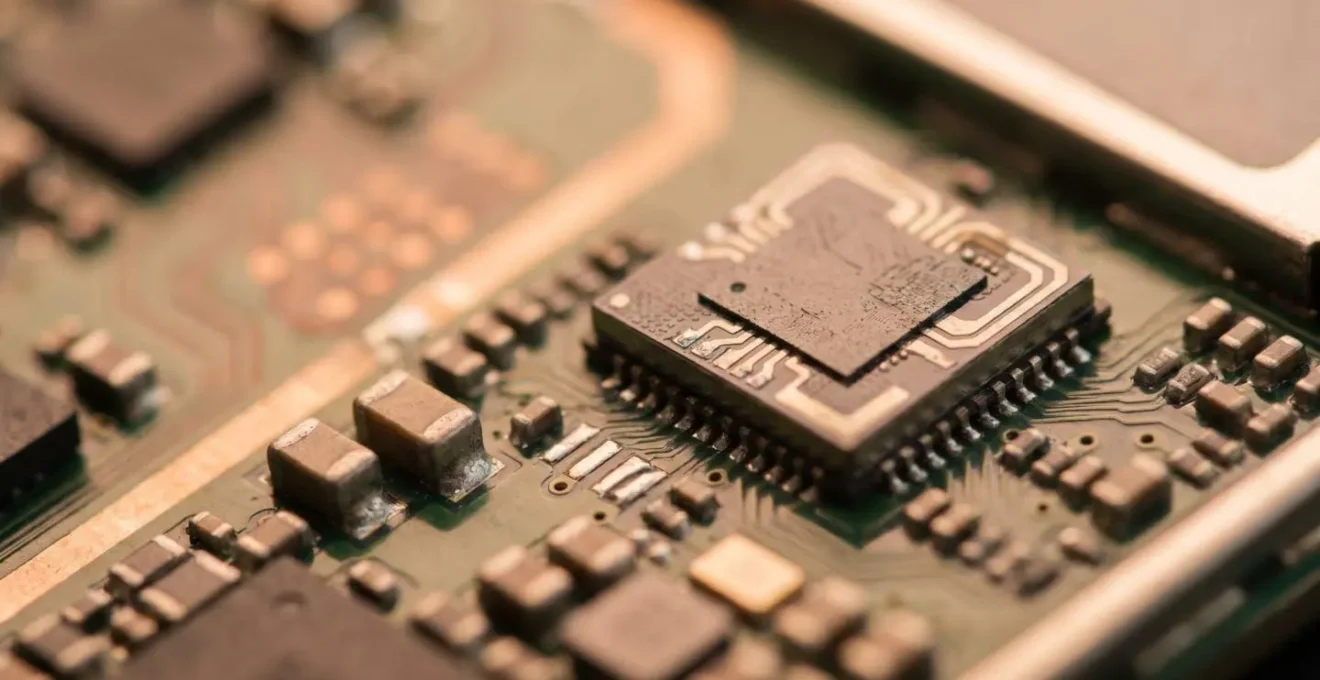
Modern phone components like the GPS/RF chip are not soldered on with simple pins; they are attached to the motherboard via a Ball Grid Array (BGA)—a grid of hundreds of microscopic solder balls. When a phone is dropped, the shockwave from the impact can travel through the device’s frame and cause the motherboard to flex slightly. This flexion, while invisible to the naked eye, is enough to create hairline cracks in these delicate solder connections. The main CPU and memory might be unaffected, allowing the phone to boot, but the connection to the GPS chip is severed. The chip is now an island, powered but unable to communicate with the system.
Case Study: Micro-fracture in BGA Solder Joints
An impact can create invisible micro-fractures in the BGA solder connections between the GPS/RF chip and the motherboard. The phone boots normally, but the GPS chip cannot communicate. This is confirmed by experts in mobile sensor hardware, who note that this manifests as a ‘dead’ GPS sensor in diagnostic tests despite no visible damage. A field diagnostic known as the “tap test”—gently but firmly pressing on the area of the motherboard where the GPS module is located while monitoring a live GPS test app—can sometimes temporarily restore the connection by pushing the cracked solder ball back into contact. If the signal flickers back to life while you press, you have definitively diagnosed a BGA failure requiring professional reflow or reballing.
This is also why a loose antenna flex cable can present the same symptoms. A drop can pop the tiny press-fit connector for the GPS antenna off its socket on the motherboard. The sensor is fine, but it’s effectively deaf. The “tap test” can also sometimes reseat these connectors, as one user discovered.
Used this app to determine that my internal gps antenna/software weren’t functioning correctly…After firmly pressing on my phone where the internal antenna was located would reconnect a loose antenna and viola, a refresh of the app displayed correctly connection and functioning.
– User Report, GPS Diagnostic app
How to reset your battery stats if the AI learning has gone wrong?
This title represents a common misconception among users. People often attribute strange phone behavior, including GPS issues, to the OS’s “AI learning” or “adaptive battery” features going haywire. While these systems can affect performance, when it comes to a GPS being stuck at an old location, the culprit is almost never the battery management AI. It is, once again, a problem with stale location data, but on a longer timescale. This is the “Location Stuck Syndrome.”
We’ve discussed how A-GPS data helps with a quick lock. This data has two parts: the almanac (general satellite constellation health and orbit data) and the ephemeris (precise orbital data for specific satellites). Ephemeris data is valid for only a few hours, but the almanac data can be considered valid for a much longer time. As noted by technical sources on GPS performance, almanac data can be received from any of the GPS satellites and may be considered valid for up to 180 days.
Herein lies the problem. If you travel to a new city, your phone downloads A-GPS data there. If for some reason that data is not properly purged when you return home, your phone’s “location memory” is now corrupted. It may continue to use parts of that weeks-old almanac data, causing it to search for satellites based on predictions for a different part of the world. This leads to the frustrating experience where you open your map, and it briefly shows your location from your last vacation before slowly—or never—finding your true position.
Stale A-GPS Data Causing Location Stuck Syndrome
A common software-based GPS failure occurs when a device’s stored A-GPS almanac data becomes outdated. The phone’s location “AI” continues using this stale data, causing it to search in incorrect sky sectors. Symptoms include the map displaying a previously visited location and extremely prolonged TTFF. Unlike a battery stats reset (often a placebo), clearing and re-downloading A-GPS data through apps like GPS Status & Toolbox provides a tangible fix by forcing the device to discard corrupted “learned” satellite predictions and download a fresh, accurate almanac.
Key takeaways
- A systematic “diagnostic funnel” approach (Software -> System -> Hardware Correlation) is the most effective way to find a GPS fault.
- A GPS that is slow to lock or shows an old location is likely suffering from corrupted A-GPS data, which is a fixable software issue.
- After a drop, if GPS, Wi-Fi, and Bluetooth all fail simultaneously, it points to a physical failure of a shared RF chip or its connections on the motherboard.
Protecting Internal Hardware Components: How to Avoid Data Loss After a Hard Fall?
While this guide focuses on the GPS, its principles apply to the complex ecosystem of sensors in your phone. Depending on the model, a modern Android device can have between 8 and 15 discrete sensors, all communicating with the main processor. Protecting these components from physical shock is the single most effective way to prevent the kind of hardware failures we’ve discussed. This doesn’t just mean using any case; it means using a case designed for impact absorption and torsional rigidity. A quality case with reinforced corners absorbs the initial shock, while a rigid frame prevents the phone’s body from flexing—the very motion that cracks BGA solder joints and severs antenna connections.
However, no protection is perfect. If you rely on your phone for professional work, you must have a plan for when a drop occurs. The most critical action you can take immediately after a significant impact is to establish a diagnostic baseline. Don’t wait for problems to appear. By running a full sensor diagnostic right after a drop, you create a timestamped record of your hardware’s health at that moment. This is invaluable. If a sensor starts failing intermittently days or weeks later, you have evidence that the issue likely originated from the impact. This can be crucial for warranty claims or insurance purposes. It also helps you, the technician, to correlate the initial trauma with the eventual symptom, confirming a hardware fault and saving you from wasting time on software fixes.
Action Plan: Your Post-Impact Diagnostic Baseline
- Immediate Test: Within an hour of a serious drop, download and run a full diagnostic test using an app like “Sensors Multitool” or “Sensor Box for Android”.
- Comprehensive Data Collection: Test all primary sensors: GPS, Accelerometer, Gyroscope, and Magnetometer (Compass). Also, test connectivity by turning Wi-Fi and Bluetooth on and off and attempting to connect.
- Document Everything: Take screenshots of every single test result screen, showing the pass/fail status and the raw sensor data. Use your phone’s built-in screen recorder to capture a video of the tests being run.
- Create Off-Device Backup: Immediately upload these screenshots and videos to a cloud service (Google Drive, Dropbox, etc.). This ensures your proof is safe even if the phone later fails completely.
- Correlate and Monitor: If a sensor fails the post-impact baseline, you have your root cause. If all sensors pass, keep the baseline for reference. If a problem develops later, you can compare new test results to this baseline to track the degradation.
This proactive, documentary approach transforms you from a victim of circumstance into a prepared technician.
Start applying this diagnostic funnel approach today. The next time you face a technical issue, resist the urge to try random fixes. Instead, begin with the software, move to system-level tests, and look for correlations. This systematic thinking is the most valuable tool a technician has.