Your phone isn’t just a device; it’s a vault, and outdated software is a broken lock.
- The most dangerous period is the “vulnerability window”—the days or weeks between a threat’s discovery and when you install the patch.
- Vague “bug fix” notes often hide urgent security updates to prevent attackers from creating exploits before users are protected.
Recommendation: Treat security updates not as a chore, but as an immediate, non-negotiable security procedure. Schedule them to run automatically overnight to ensure you’re always protected.
As someone who uses their smartphone for every financial transaction, the fear of identity theft is not just abstract—it’s a constant, low-level anxiety. You’ve likely heard the standard advice: use strong passwords, enable biometrics, and avoid suspicious links. While these are valid first steps, they are merely the perimeter fence. The real war for your data is won or lost in a timeframe you might not even be aware of: the critical gap between a new threat’s discovery and the moment you install the latest security patch.
Most users see “minor bug fixes” and postpone the update, thinking it’s insignificant. This is a dangerous misconception. In the world of cybersecurity, these vague notes are often a deliberate strategy to deploy critical protections without tipping off malicious actors. The true key to securing your digital vault isn’t just having a lock; it’s ensuring that lock is never, even for a day, vulnerable to a known master key. This is where understanding the concept of the “vulnerability window” becomes your most powerful weapon.
This guide moves beyond generic advice. We will operate from the perspective of a security consultant, deconstructing the timeline of mobile threats. We will analyze the real risks of delayed updates, decode the cryptic language of patch notes, and establish a robust protocol to ensure your banking data remains truly impenetrable. You’ll learn not just what to do, but why you’re doing it, transforming your approach from passive user to proactive defender of your own financial identity.
This article will provide a clear roadmap to fortifying your mobile banking security. We will explore the critical nature of security patches, the real-world risks of delay, and the practical steps you can take to protect your data both on personal and work devices.
Summary: A Cybersecurity Expert’s Guide to Protecting Your Mobile Banking Data
- Why “minor bug fixes” often contain critical security patches?
- How to check if your latest security patch actually installed correctly?
- Monthly vs Quarterly updates: what is the risk window for zero-day exploits?
- The risk of using an unpatched phone for two-factor authentication
- How to schedule updates overnight so you’re never vulnerable during the day?
- Face Unlock vs Fingerprint: which is safer for banking apps?
- How to report a mobile data loss to the ICO within 72 hours?
- Robust Enterprise Security Protocols: How to Prevent a GDPR Breach via Company Mobiles?
Why “minor bug fixes” often contain critical security patches?
The dismissive phrase “bug fixes and performance improvements” is one of the most misunderstood in personal technology. From a cybersecurity consultant’s perspective, this is often a deliberate act of strategic communication. When a significant vulnerability is discovered in an operating system or application, a race begins. On one side, developers rush to create and distribute a patch. On the other, malicious actors race to develop an exploit to take advantage of the now-public flaw.
Announcing the specifics of a security fix—”Patched a vulnerability that allowed remote access to…”—would serve as a detailed roadmap for attackers, telling them exactly where to strike. As a matter of industry best practice, this information is intentionally obscured. As noted in an analysis of mobile banking threats, experts confirm this approach:
Companies intentionally use vague language like ‘bug fixes’ to avoid tipping off attackers about a specific vulnerability before the majority of users have updated, preventing a race to create an exploit.
– Security industry best practice, Mobile Banking Security Against Emerging Threats – Jappware
Therefore, you must treat every update notification, no matter how minor it sounds, as potentially critical. The industry is also moving towards enforcing this. For instance, Google’s Play Integrity API now allows banking apps to recognize and even restrict functionality on devices with outdated security patches. This isn’t about forcing an update for minor tweaks; it’s an institutional recognition that an unpatched phone is an unacceptable risk to the financial ecosystem.
How to check if your latest security patch actually installed correctly?
Downloading an update and installing it are two different things. Often, a critical security patch requires a device restart to be fully activated. Simply assuming the patch is active because you tapped “install” can leave you exposed. Verifying your device’s security status is a simple but crucial habit for anyone serious about protecting their banking data. It’s a quick health check for your digital vault.
For both Android and iOS devices, the process is straightforward and takes less than a minute. You need to locate your device’s current security patch level or software version and, if necessary, compare it to the manufacturer’s official security bulletins. This ensures you are protected against the most recently discovered vulnerabilities. Don’t just trust the notification; verify the installation.
Follow these steps to confirm your security status:
- For Android users: Navigate to Settings > About Phone > Android Version. Here you will find your “Android Security Patch Level” (SPL) with a corresponding date.
- Cross-reference your patch date: Visit Google’s public Android Security Bulletins online. Check that your patch level date is at or later than the most recent bulletin to ensure you are fully protected.
- For iOS users: Go to Settings > General > About. Note your iOS version number. Compare this with the latest releases listed on Apple’s official security updates page.
- Restart your device: If you find that a patch has been downloaded but your security level hasn’t updated, a full device restart is often required to complete the installation process. This is a common and critical final step.
Making this check a monthly routine ensures you are never unknowingly operating with a security deficit. It’s the equivalent of checking that the bank vault door is actually locked, not just closed.
Monthly vs Quarterly updates: what is the risk window for zero-day exploits?
The frequency of security updates from your phone’s manufacturer is not a matter of convenience; it directly defines your personal “vulnerability window.” This window is the high-risk period between the moment a security flaw (a “zero-day”) is discovered and the moment your device is patched. The longer this window stays open, the greater the chance an attacker has to exploit it. Understanding this timeline is crucial for assessing the true security of your device.
Attackers operate with remarkable speed. According to research from IBM on zero-day threats, exploits for a newly disclosed vulnerability are often developed and weaponized within just 14 days. Now, compare that to the patch cycle of many organizations and device manufacturers. Enterprise analysis shows that standard patch cycles can take 30 to 60 days. This creates a significant and dangerous gap where you are vulnerable even if you install updates as soon as they arrive.

This timeline illustrates the problem perfectly. A device receiving quarterly updates could be vulnerable for over two months, while a device on a monthly cycle significantly shrinks that risk window. When choosing a smartphone for sensitive tasks like banking, a manufacturer’s commitment to monthly security updates (like Google’s Pixel or Samsung’s flagship devices) should be a primary consideration. A quarterly update schedule, common on many budget devices, leaves you exposed for an unacceptably long period.
The risk of using an unpatched phone for two-factor authentication
Two-factor authentication (2FA) feels like an ironclad security measure. After all, a hacker would need both your password and your physical phone, right? Unfortunately, this is a dangerous oversimplification, especially on an unpatched device. While any 2FA is better than none, vulnerabilities in your phone’s operating system can be exploited to intercept the very codes meant to protect you, effectively turning your second factor of security against you.
The most common form of 2FA—codes sent via SMS—is notoriously vulnerable. Security experts have long warned that SMS messages can be intercepted through various attacks, including SIM swapping and social engineering. However, a more insidious threat exists when your phone is unpatched: malware that directly intercepts these codes on your device. An even greater risk emerges from “attack surface synchronization,” where a compromise on one device can bypass 2FA on another.
Case Study: Bypassing Mobile 2FA via Cross-Platform Synchronization
A study by security researchers demonstrated a chillingly effective attack. By first compromising a user’s PC and hijacking their Google account session, attackers were able to remotely install malicious apps on the user’s linked Android phone without their knowledge. These apps were designed specifically to intercept incoming SMS messages containing 2FA one-time passwords. The attack completely bypassed the need to physically have the phone, leveraging the trusted synchronization feature between a computer and a mobile device to defeat the second factor of authentication. This highlights how a vulnerability on one platform can create a critical failure on another.
This case study proves that an unpatched phone is not just a risk in isolation. It’s a weak link in your entire digital security chain. A vulnerability that allows for remote app installation or SMS interception renders SMS-based 2FA almost useless. This is why migrating to more secure 2FA methods, such as authenticator apps (Google Authenticator, Authy) or hardware security keys (YubiKey), is a critical step for protecting high-value accounts like your bank.
How to schedule updates overnight so you’re never vulnerable during the day?
One of the biggest barriers to consistent security patching is inconvenience. Update notifications always seem to pop up at the worst times—during a meeting, while you’re navigating, or when you simply can’t afford the 10-15 minutes of downtime. The solution is to remove the decision from your daily life entirely by scheduling updates to install automatically overnight. This ensures your device is patched and protected while you sleep, closing the vulnerability window with zero disruption to your day.
Both Android and iOS offer robust features to automate this process. The key is to enable automatic downloads and, crucially, automatic installation. Setting this up once means you’ll rarely have to think about security updates again; your phone will simply be protected by the time you wake up. It’s the single most effective “set it and forget it” security measure you can take.
Here’s how to configure it on your device:
For most Android Devices (e.g., Google Pixel, Samsung):
- Open Settings and navigate to Security & privacy.
- Tap on System & updates (or simply “System update” on some devices).
- Look for an option called Automatic updates or a gear icon for settings.
- Enable “Auto-download over Wi-Fi” to ensure updates are ready.
- Most importantly, enable “Overnight update” or “Smart Update.” This will automatically install the downloaded patch during a set window, typically between 2:00 and 5:00 AM, provided your phone is charging and not in use.
For iOS Devices (iPhone):
- Open Settings and go to General.
- Tap on Software Update.
- Select Automatic Updates.
- You will see two toggles. Ensure both “Download iOS Updates” and “Install iOS Updates” are turned on. When both are enabled, your iPhone will download the update and then automatically install it overnight while the device is charging and connected to Wi-Fi.
By automating this process, you are adopting a core principle of professional cybersecurity: removing the human element of forgetfulness or procrastination from a critical security function.
Face Unlock vs Fingerprint: which is safer for banking apps?
Biometric authentication has become the standard for accessing banking apps, offering a blend of convenience and security. However, not all biometric systems are created equal. As a user concerned with identity theft, it’s vital to understand the “biometric hierarchy”—the different levels of security offered by these technologies. A simple 2D face unlock on a budget phone is fundamentally different from the sophisticated 3D mapping used by high-end devices, and this difference is critical when securing your finances.
The gold standard for biometric security is determined by its resistance to “spoofing”—being fooled by a photo, mask, or other imitation. This is where a clear distinction emerges. Many Android phones use camera-based 2D face unlock, which can often be defeated with a simple photograph. In contrast, systems like Apple’s Face ID or Google’s advanced face unlock on the Pixel series use Class 3 biometric security. They project thousands of infrared dots to create a 3D depth map of your face, making them highly resistant to spoofing.
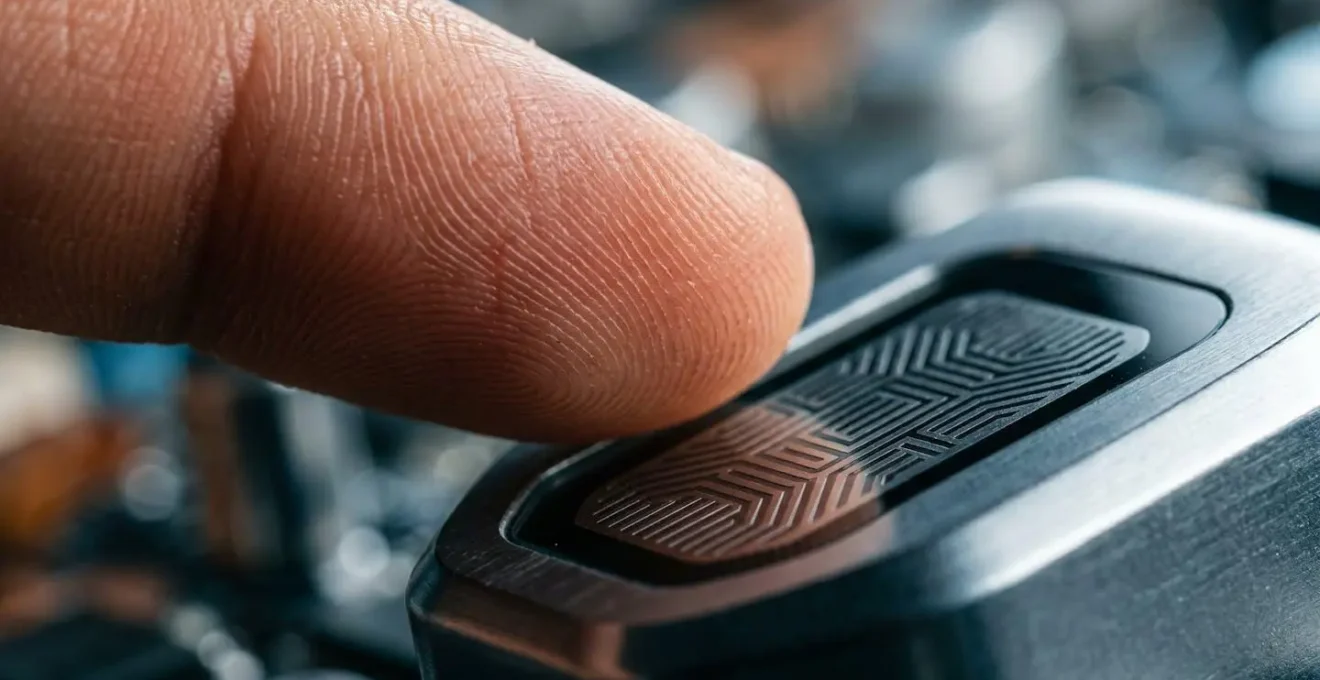
Fingerprint scanners generally fall in between. While more secure than basic 2D face unlock, they can be vulnerable to sophisticated spoofing techniques. The following table breaks down the key security differences, providing a clear guide for choosing and using biometric authentication for your banking apps.
| Security Feature | 3D Face ID (Apple, Pixel 8+) | 2D Face Unlock (Budget Phones) | Fingerprint Scanner |
|---|---|---|---|
| Spoofing Resistance | Very High – resistant to photos, videos, masks | Low – can be fooled by photos | Medium – can be fooled by sophisticated spoofs |
| Liveness Detection | Yes – depth mapping & attention awareness | No or basic | Limited |
| Banking App Suitability | Excellent – Class 3 biometric security | Unsuitable – too easily bypassed | Good – widely accepted |
| Twin/Sibling Risk | Medium – can be fooled by identical twins | High – similar facial features sufficient | None – fingerprints always unique |
| Reliability | Good – works in various lighting | Poor – struggles in low light | Excellent – unaffected by environment |
| Legal Protection | Can be compelled by law enforcement | Can be compelled by law enforcement | Can be compelled by law enforcement |
For banking apps, the conclusion is clear: prioritize devices with 3D face unlock technology as it offers the highest level of security. If that’s not an option, a good quality fingerprint scanner is the next best choice. You should completely avoid using basic 2D face unlock for any sensitive applications.
How to report a mobile data loss to the ICO within 72 hours?
If you discover your personal data has been compromised through a mobile app, a sense of panic and helplessness can set in. A common point of confusion is the GDPR’s famous “72-hour rule.” It’s crucial to understand that this rule is a legal obligation placed on organizations to report a data breach to the relevant authority, such as the Information Commissioner’s Office (ICO) in the UK. It is not a deadline for you as an individual.
However, this knowledge is your power. You can be the catalyst that starts the clock. If you suspect a company has lost your data and has not informed you, your formal report to them can trigger their legal obligation to notify the authorities. This shifts the burden of responsibility from you to the organization and empowers you to hold them accountable. Your role is not to investigate the breach, but to officially report the incident and assert your rights.
Navigating this process requires a clear, step-by-step approach to ensure your case is documented and your rights under regulations like GDPR are protected. This plan helps you take control of the situation and demand accountability.
Your Action Plan for a Suspected Data Breach
- Formally Contact the Company: As soon as you suspect a breach, contact the company involved (e.g., your bank, the app developer). State clearly that you believe your data has been compromised in a security incident. This action can officially start their 72-hour reporting deadline.
- File a Subject Access Request (SAR): Simultaneously, submit an SAR to the company. This legally requires them to provide you with a copy of all the data they hold on you, which can help clarify what was potentially exposed.
- Identify Your Data Protection Authority (DPA): Every country has a supervisory body. In the UK it’s the ICO, in France it’s the CNIL, and in the US consumer complaints can be directed to the FTC. A quick search for “[Your Country] data protection authority” will yield the correct contact.
- File a Complaint with Your DPA: If the company fails to respond appropriately, does not notify you of a breach you know has occurred, or ignores your SAR, file a formal complaint with your DPA. Provide them with all correspondence.
- Trigger Accountability: Remember, your goal is to make the organization fulfill its legal duties. By documenting your actions and reporting the incident, you are not just protecting yourself, but contributing to a more secure digital environment for everyone.
While the initial breach may feel disempowering, understanding and using these procedural rights is the most effective way to regain a sense of control and ensure the organizations entrusted with your data are held to the highest standard of security and transparency.
Key takeaways
- The ‘vulnerability window’ between a threat’s discovery and your update is your biggest risk; closing it fast is your top priority.
- “Minor bug fixes” are often urgent security patches in disguise; treat every update as critical and install it immediately.
- Not all biometrics are equal for banking; 3D Face ID (Class 3) offers superior security over basic 2D face unlock and even some fingerprint scanners.
Robust Enterprise Security Protocols: How to Prevent a GDPR Breach via Company Mobiles?
For many professionals, the line between personal and work life is blurred on a single device: the company-issued smartphone. Installing your personal banking app on a work phone introduces a complex layer of risk that you need to consciously manage. Your company has a right and a responsibility to secure its corporate data, often through Mobile Device Management (MDM) software. Understanding what this software can—and cannot—see is paramount to protecting your private financial information.
MDM solutions give an IT department significant control over a device, including the ability to enforce security policies, track location, and even remotely wipe all data. While they typically cannot see the content within your apps (like your bank balance or private messages), the simple presence of your banking app on a managed device creates a potential “attack surface.” If the device or the company’s network is breached, your personal data could be collateral damage.
The safest approach is physical or digital separation. The ideal solution is using a dedicated personal device for all sensitive activities. If that’s not feasible, look for containerization technology on your work phone, such as Android’s “Work Profile” or iOS’s “Managed Apps.” These features create a secure, encrypted partition on your device, effectively building a digital wall between your work data and your personal apps. Your IT department can manage the work “container,” but has no visibility or control over your personal space.
Before you install a banking app on a work phone, perform a personal risk assessment using this checklist:
- Check for MDM Software: Ask your IT department what management software they use and what data they can see. A transparent policy is a good sign.
- Verify Containerization: Does your phone have a “Work Profile” (Android) or separate managed apps (iOS)? If so, install your banking app outside of the work container.
- Review Company Policy: Read your company’s mobile device policy. It should explicitly state what personal use is permitted and what data the company reserves the right to access.
- Assess the Risk: If your company uses MDM without a Work Profile, they may have the ability to see a list of all installed apps. In a security incident or remote wipe, the risk of data exposure is higher.
- Default to Separation: When in doubt, the most secure action is to use a separate, personal device for banking. If your company’s policy is unclear or lacks containerization, do not use the work phone for personal finance.
To fully protect your financial identity, the next logical step is to integrate these practices into a consistent security routine. Start today by scheduling automatic overnight updates and verifying which biometric security your primary banking device uses.